
Live Show
Run of Show View
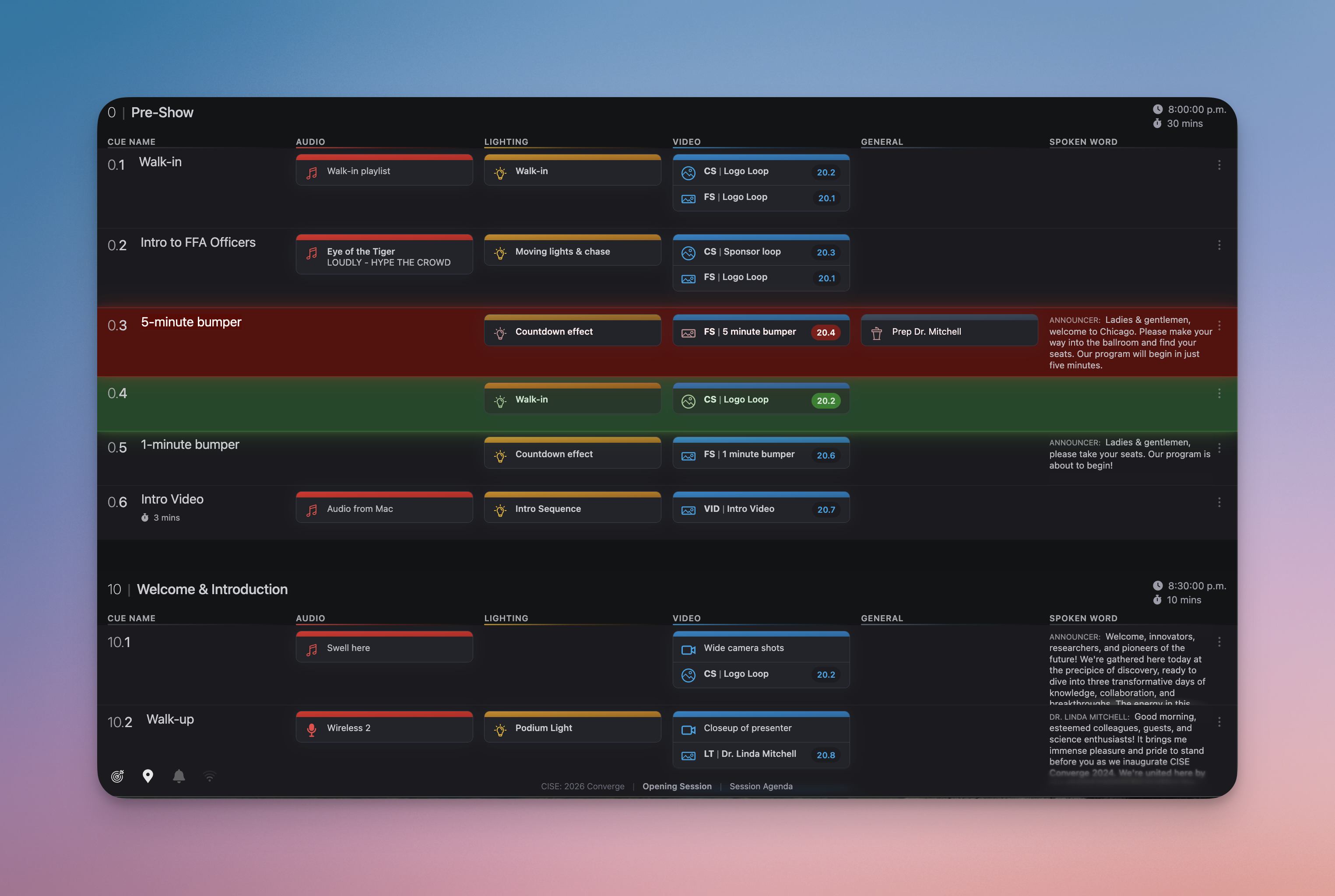
When it's time to run your show, our Run of Show View is a concise way for your team to see all of the cues in your show on a concise screen.
The three-dot shortcut from the run of show view will take you to edit a section. The “Exit Block Editor” button will take you back to the run of show view afterward.
Opening Run of Show View
To access this view, choose your session from your production's home page, and select the Run of Show view from the Layout dropdown in the session header’s menu bar.
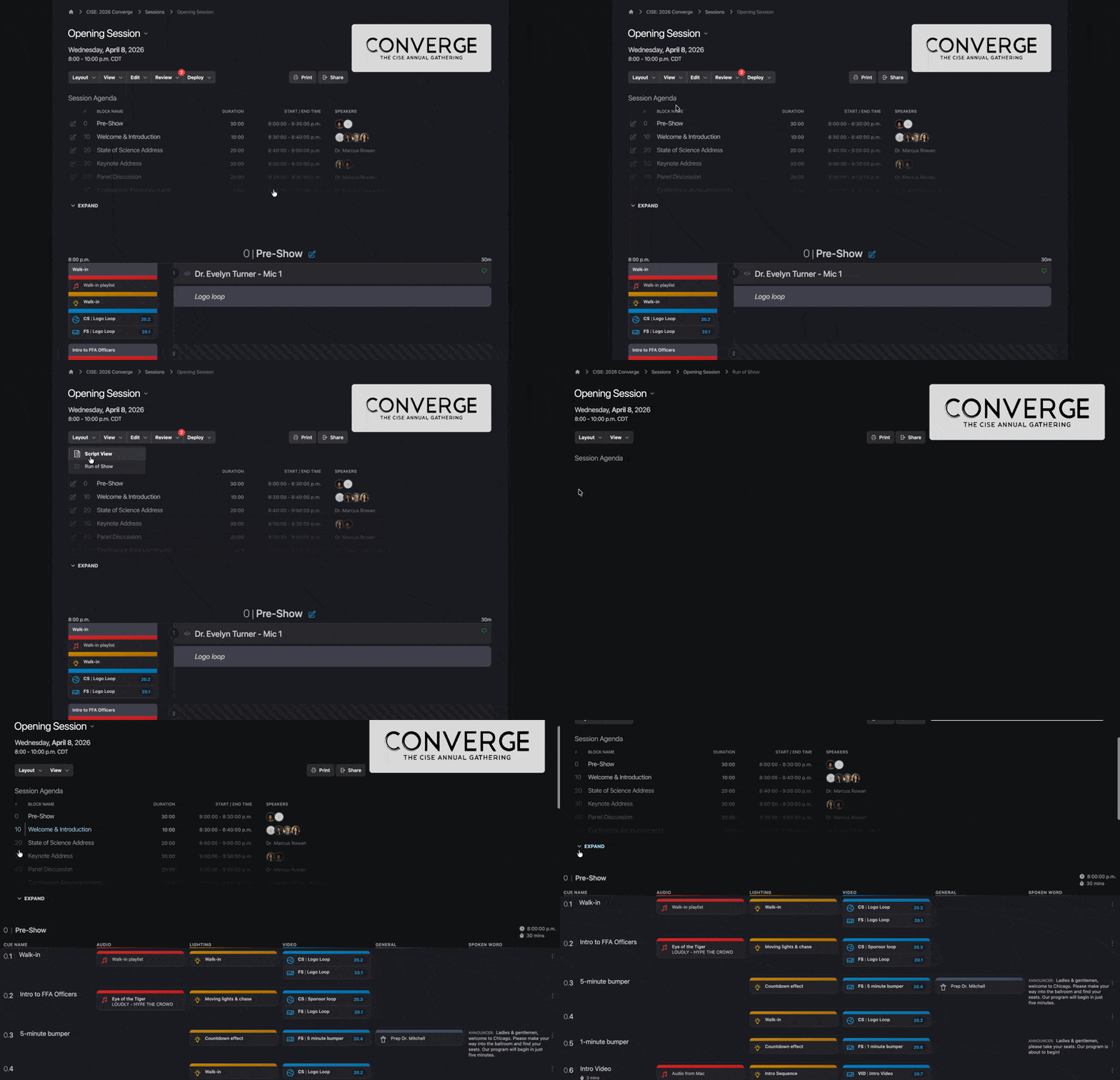
From here, the Run of Show view opens. By default, it shows you a full view of all cues from every department:
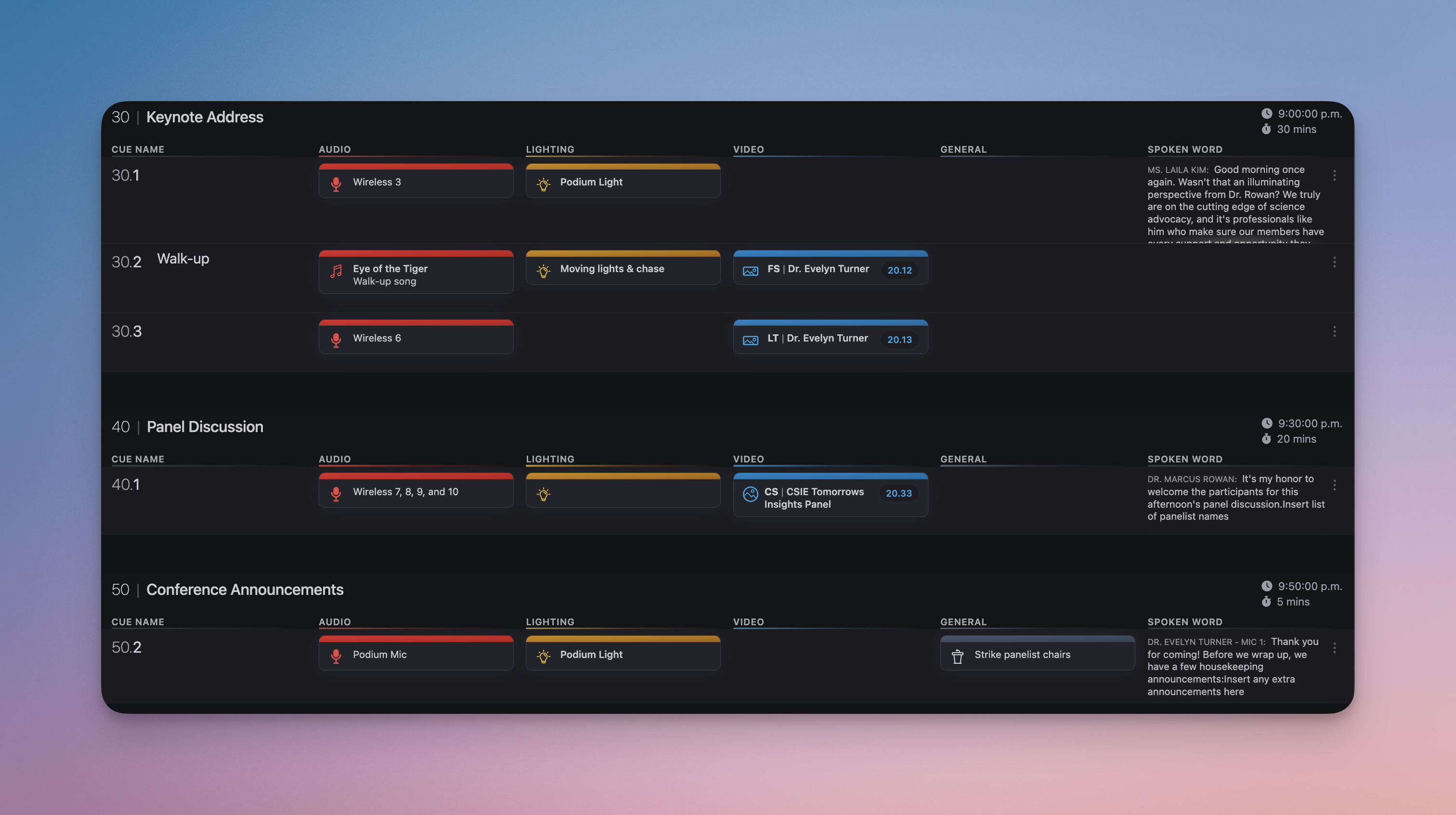
The columns shown are:
- Cue Name: If the cue has a name, it will appear here. This column also shows the block number and section number. For example,
0.3means block0, section3. - Audio/Lighting/Video/General: These are the departments you have added to your production that have had cues scripted in this session.
- Spoken Word: This is a scrollable area showing any spoken word content that has been scripted in this section. This is useful if you need to follow along with a speaker's scripted remarks.
If you'd prefer to have more visibility into the spoken word, consider using the full script view.
Live Show Tracking
This view supports live show tracking. To learn more, visit our live show tracking page.
Filtering by Department
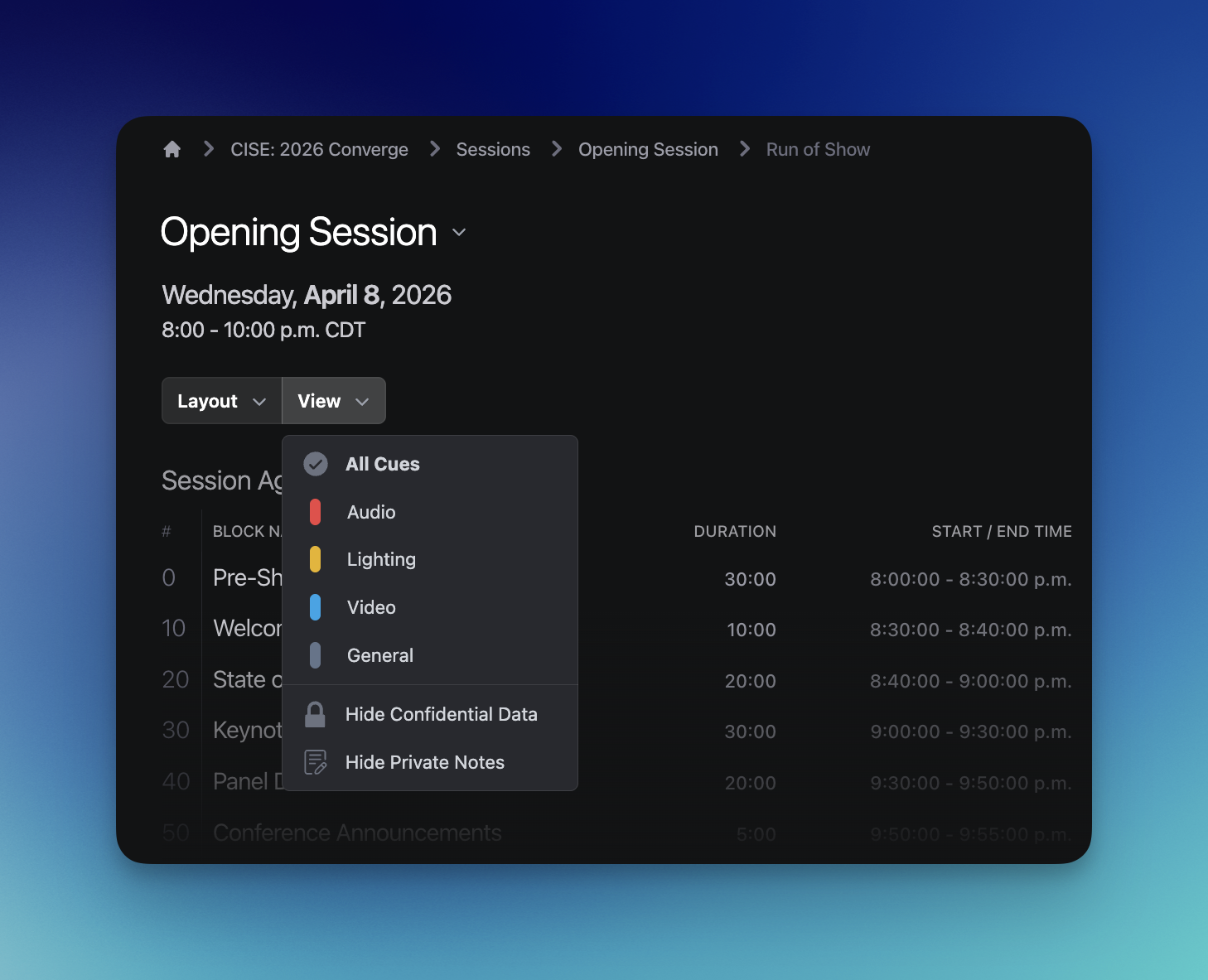
You can change which departments are visible by using the menu bar in the session header. Hover over View to make your selection.
All Departments
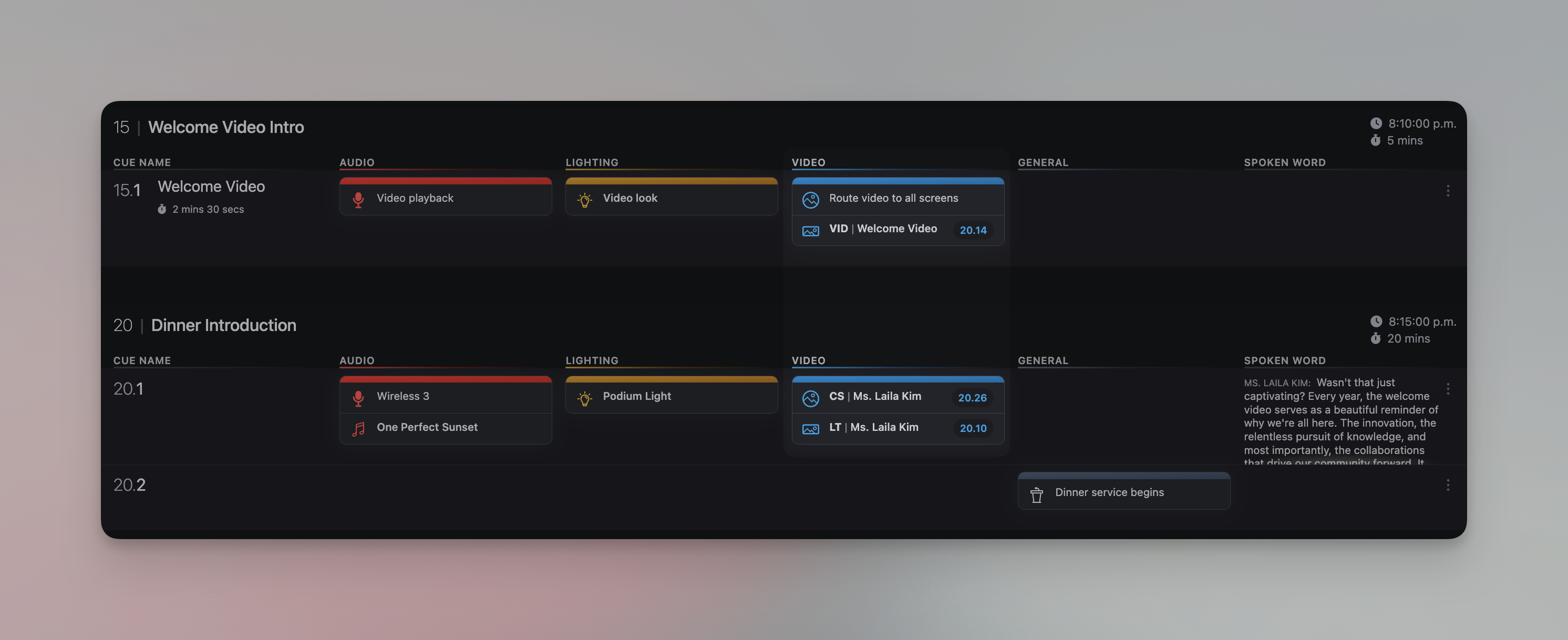
The All Cues option shows you every cue, organized by department. If there are multiple cues within a department, they will stack on top of each other so that they are all visible.This is the default view when viewing in Run of Show layout.
This view is intended for a show caller, or anyone else who needs a holistic view of every cue that will be happening during the show.
As an example, in the following screenshot, in sections 15.1 and 20.1, the Video department has two subdepartment cues that are intended to happen simultaneously.
Department Specific Views
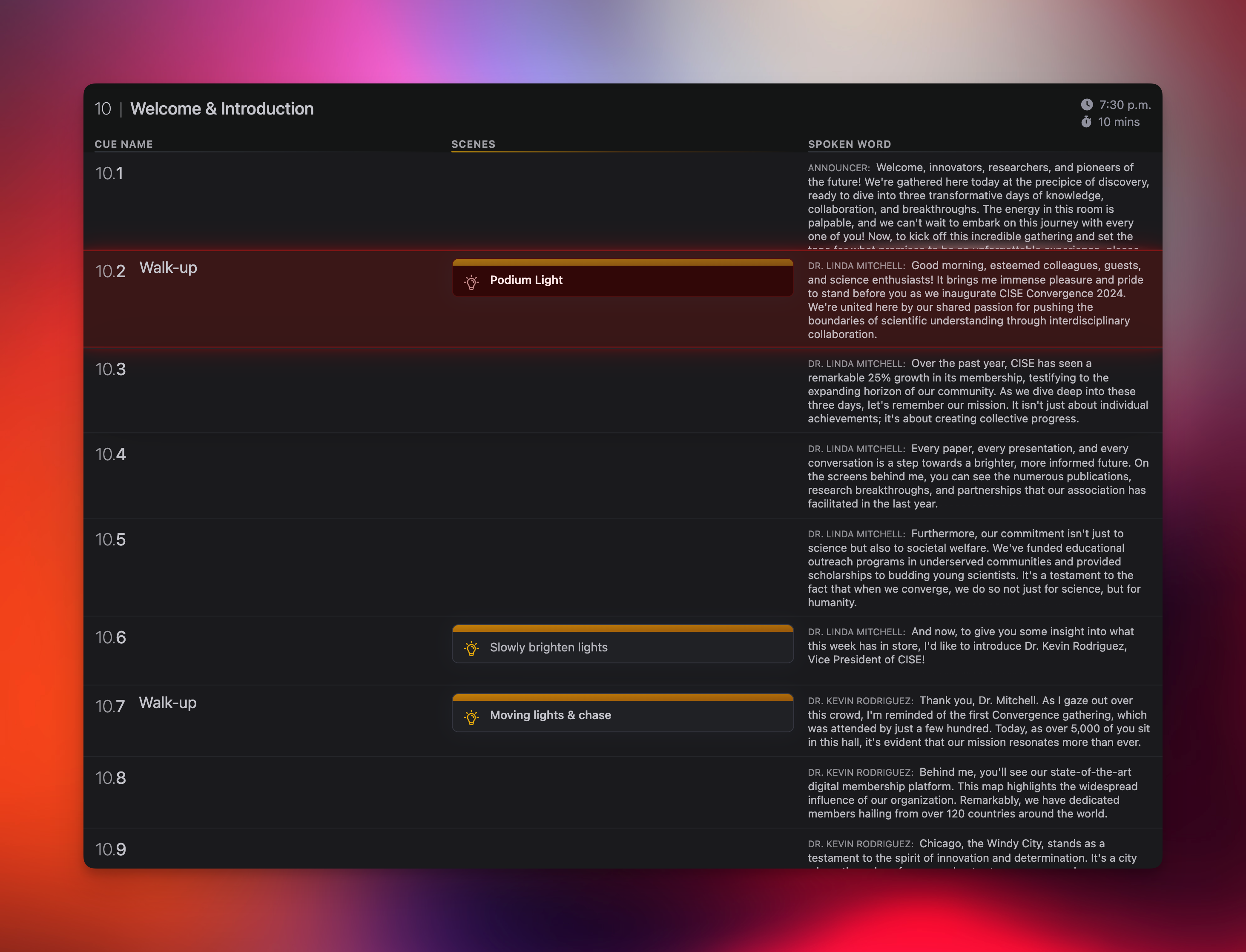
By changing the tab to a specific department, you instead see cues just for that department. The department columns are replaced with columns for the subdepartments within that department.
For example, choosing the Audio department will show individual columns for the three audio subdepartments used in this production, which in this example are Microphones, Songs and Voiceovers.
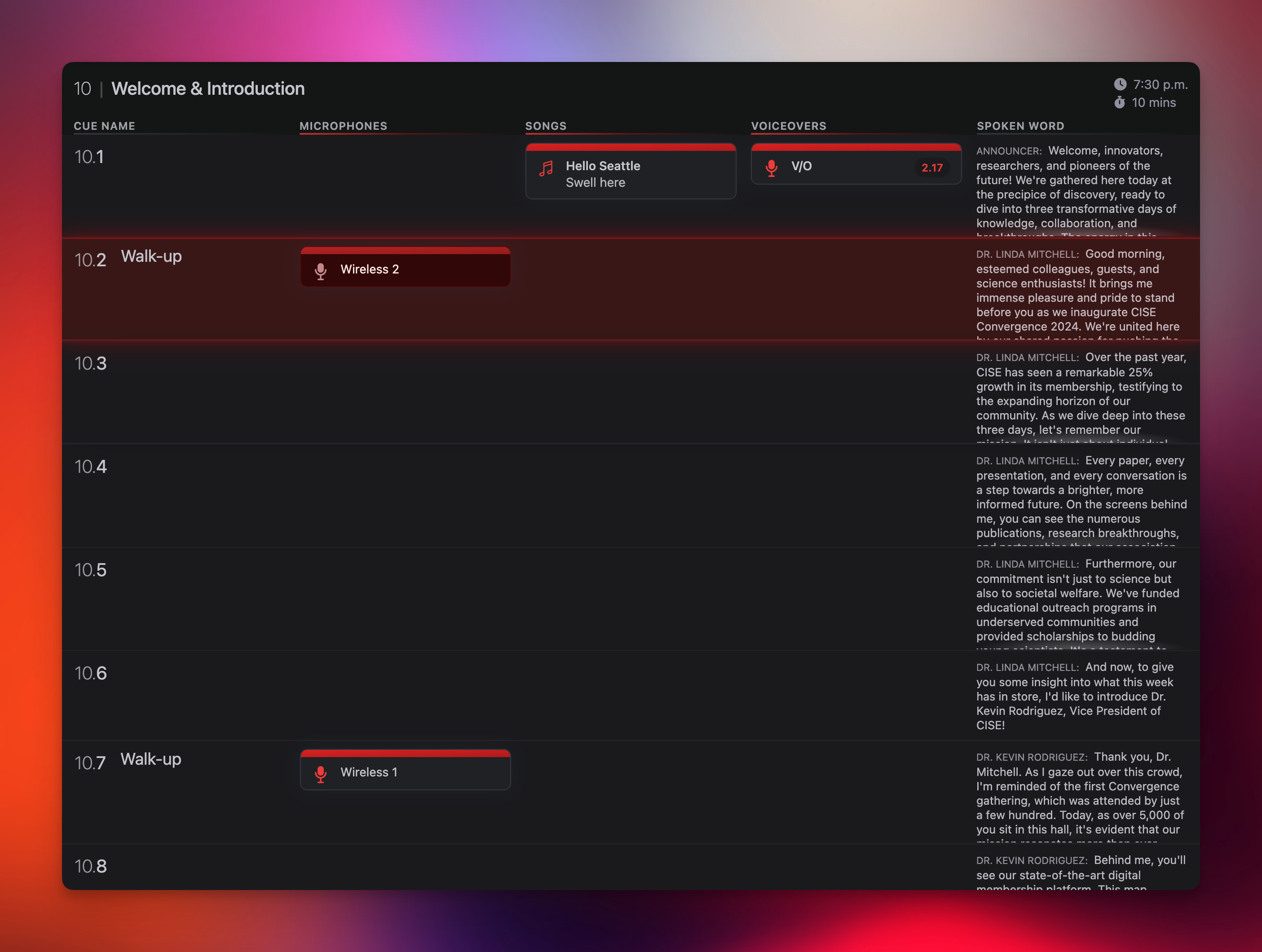
This is helpful for any operator who solely wants to focus on cues within their own department.
In this example, the Lighting department only has a single subdepartment named Scenes:
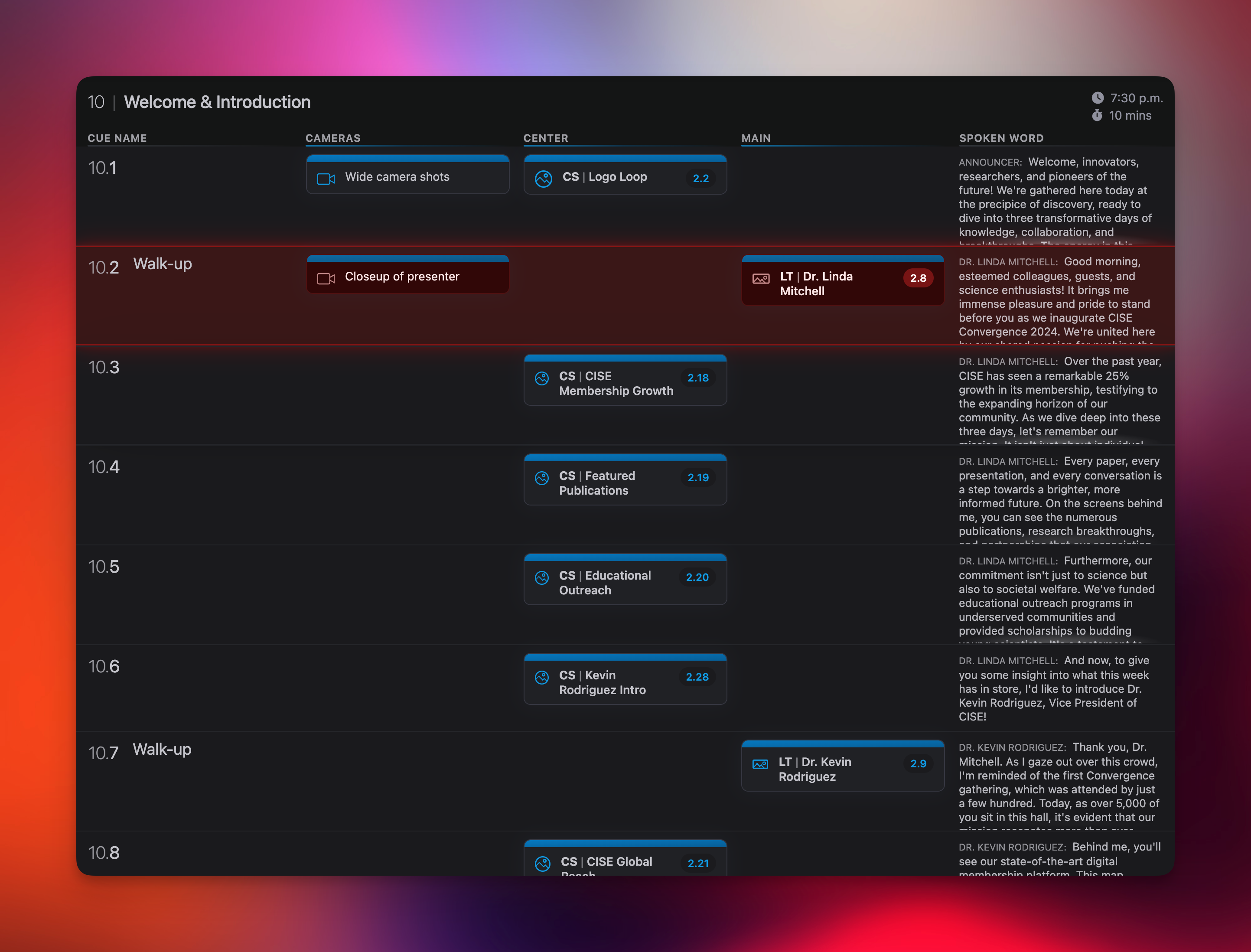
And the Video department has subdepartments for Cameras, and Center and Main graphics.
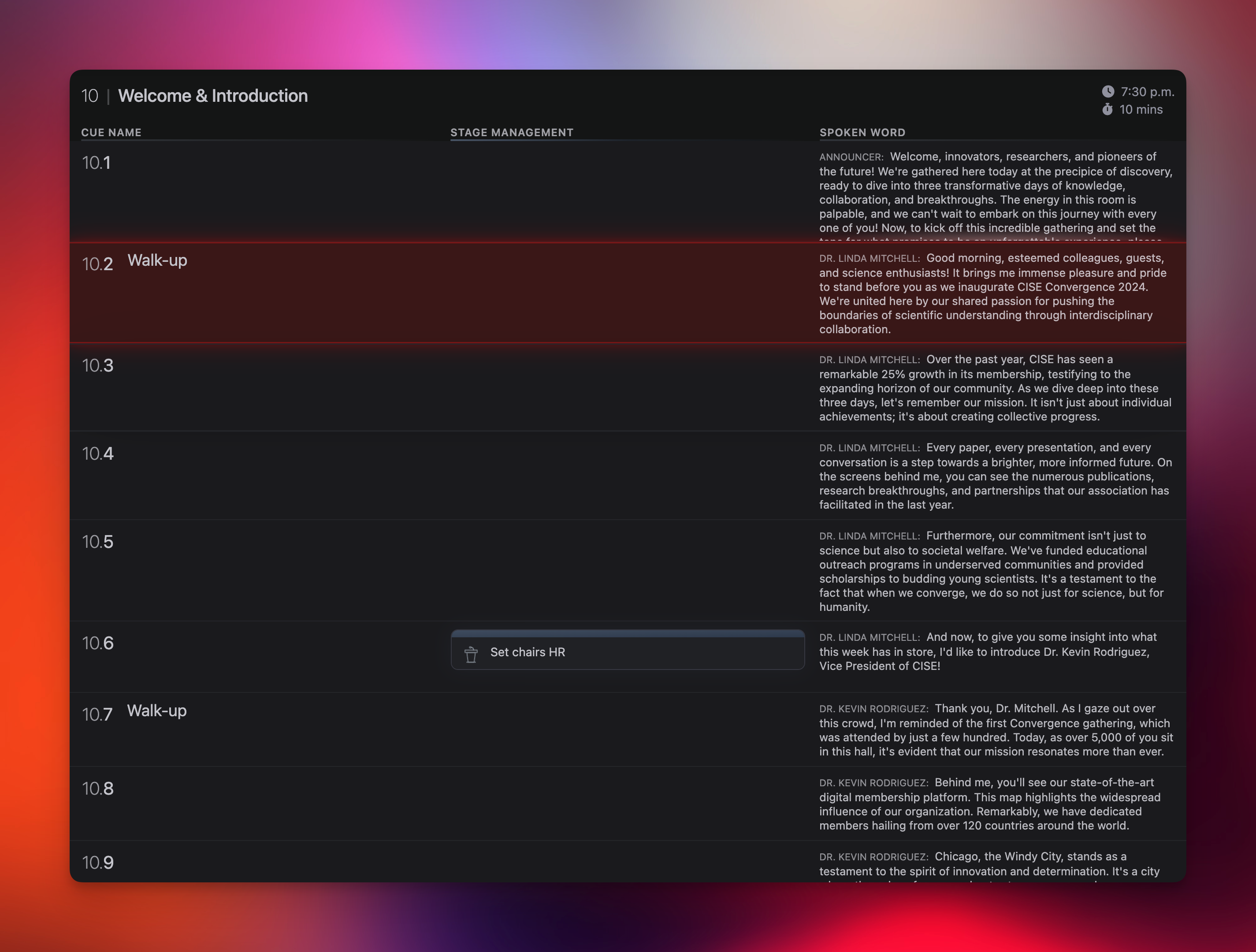
Finally, the General department is used in this example to track any Stage Management cues.
You can create as many subdepartments for each production as you like.
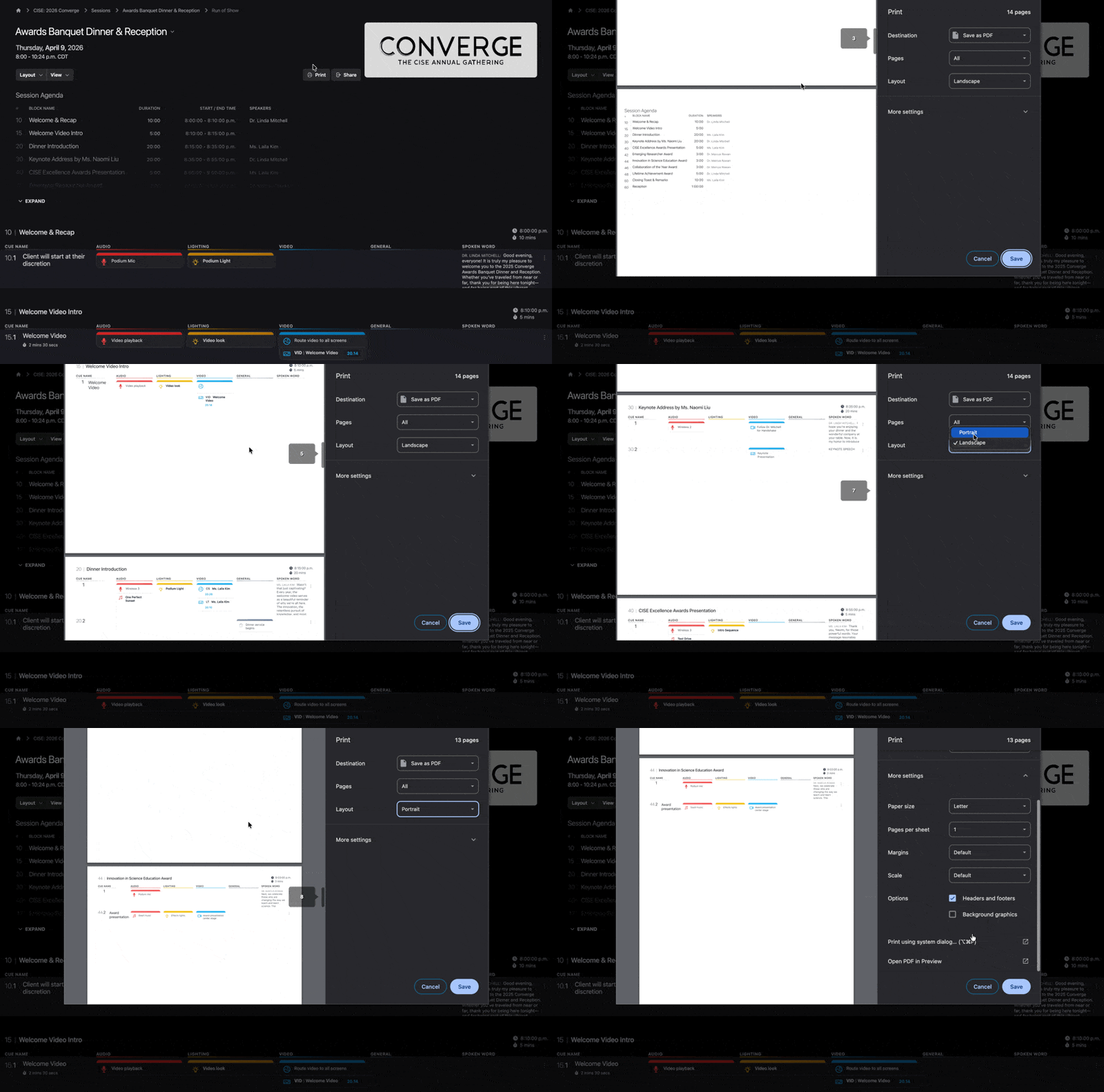
Printing Run of Show View
You can print the current Run of Show by using the Print button at the top of the page.