

Sessions
Creating & Editing Sessions
In Script Elephant, a session represents a single show. Typically, this is the moment you open doors to until the moment you close them again. For example, if your production is “Company Annual Meeting,” then you may have sessions that include, “Opening Banquet,” “Welcome & Keynote,” or “Closing Awards Ceremony.”
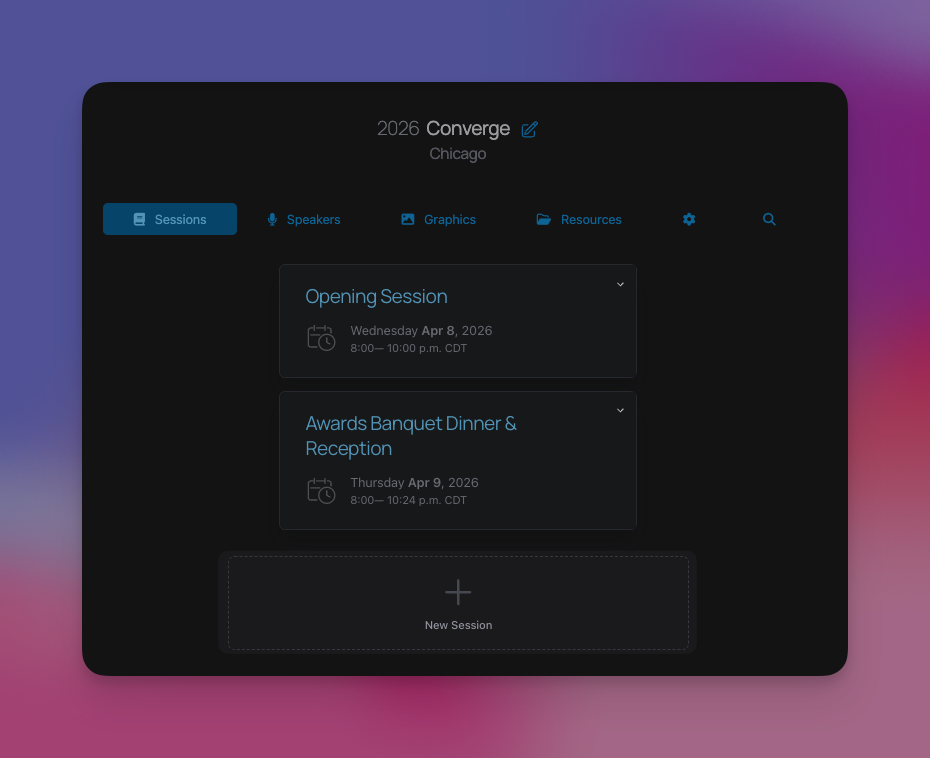
To create a session, visit your production, click the New Session button, and fill out the form.
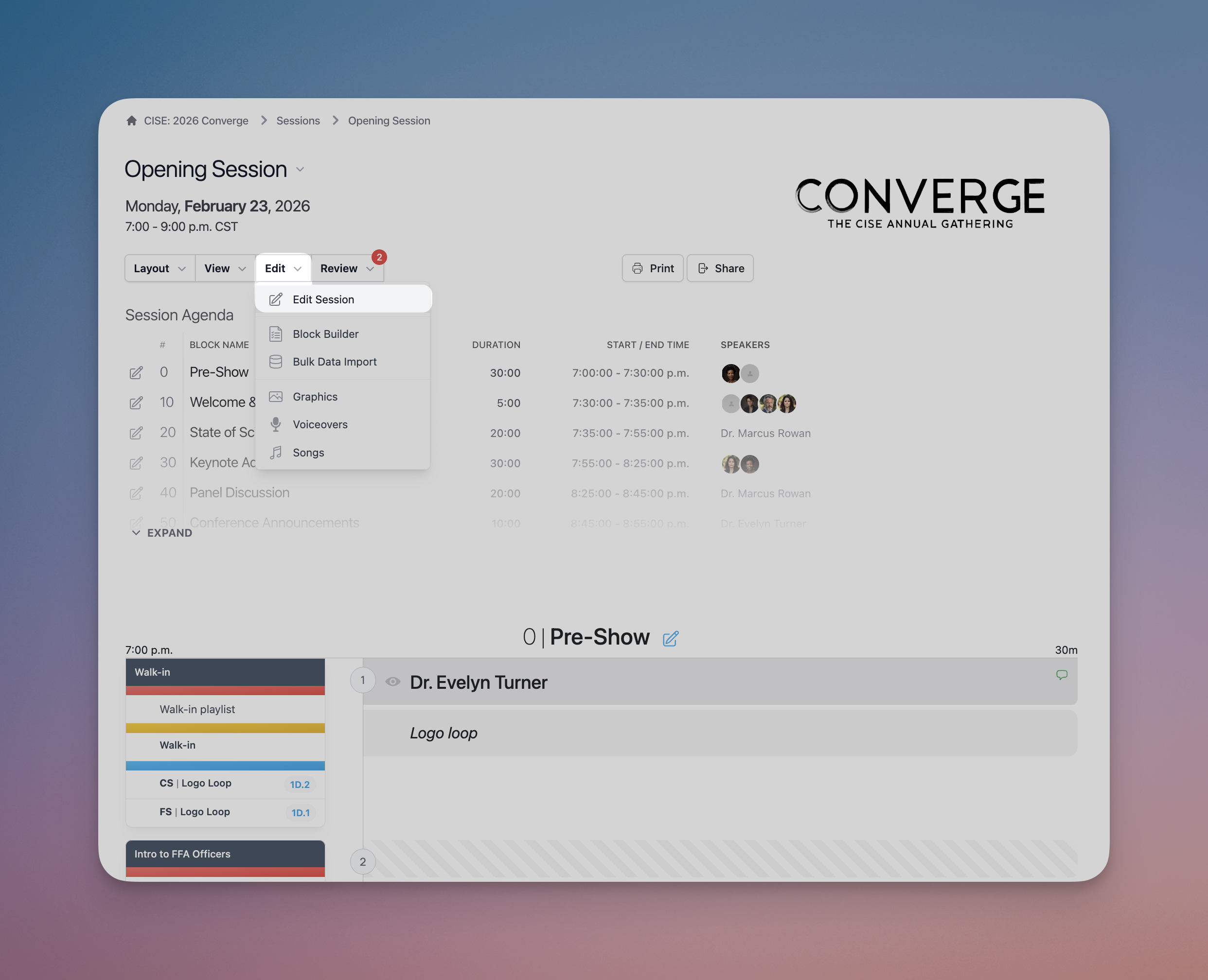
To edit the session details within the session dashboard, hover over the Edit option in the menu bar, and select “Edit Session.”
From here, the following fields are available:
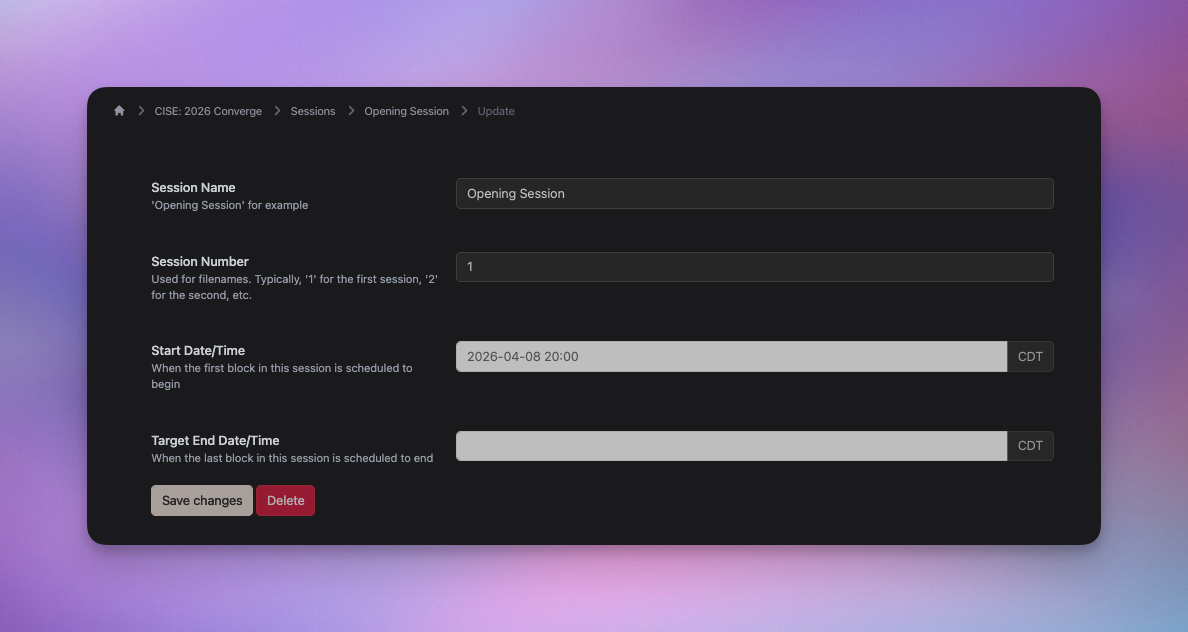
- Session Name: This is how your session will appear throughout the platform.
- Session Number: This is used as shorthand throughout the platform. For example, many generated filenames will use this number.
- Start Date/Time: When the first block in this session is scheduled to begin
- Target End Date/Time: When the last block in this session is scheduled to end (optional)
When you make edits in the session, background saving works both the block view and the full script view. This means you can edit the script directly from the full script view.
Live tracking also works seamlessly within the full script or run of show view. This means you can be mid-rehearsal and make any updates you need to the show in real time, including editing or creating new sections and blocks, and then double-click to take them live. Anyone who had the script open will still need to refresh to see your changes.