
Scripting
Private Notes
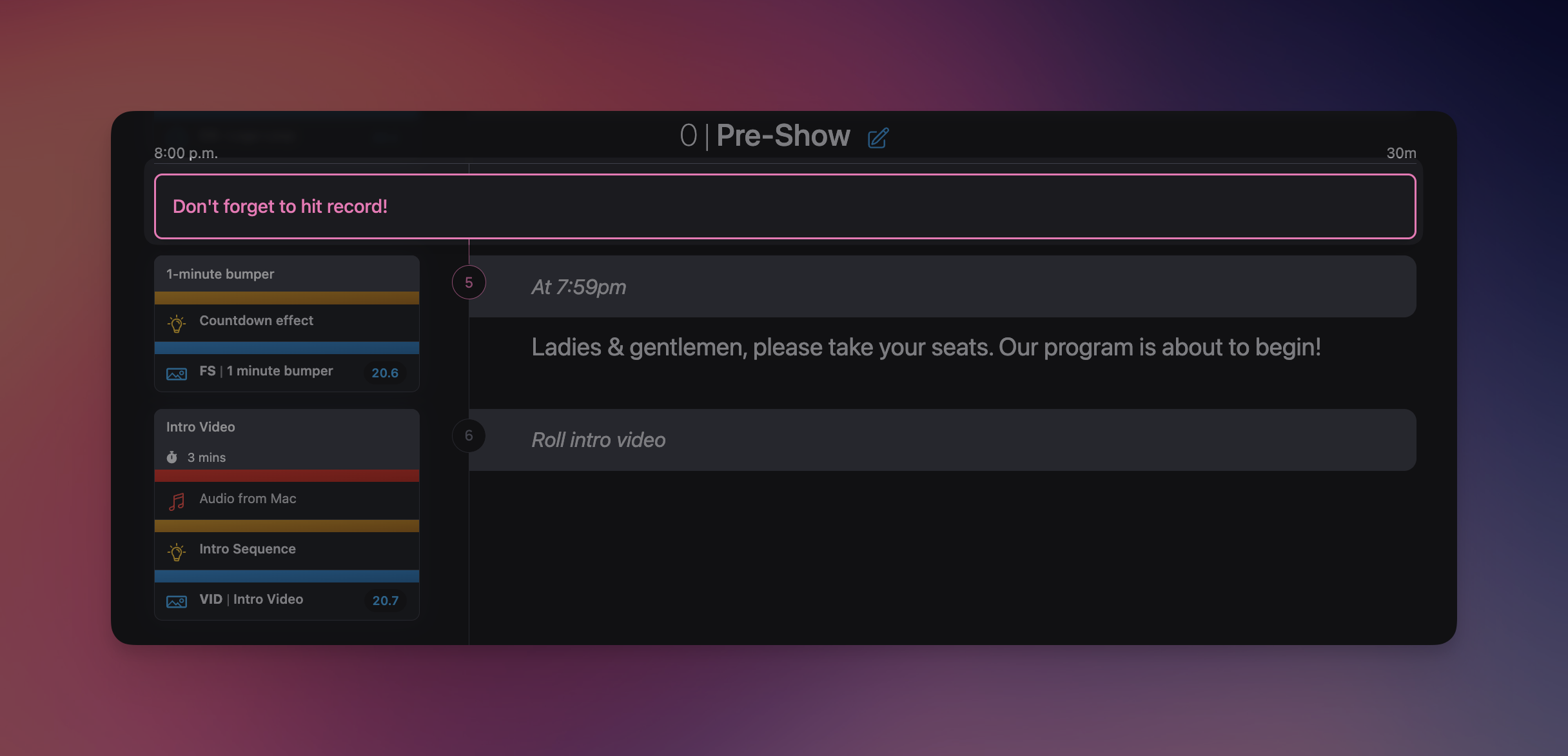
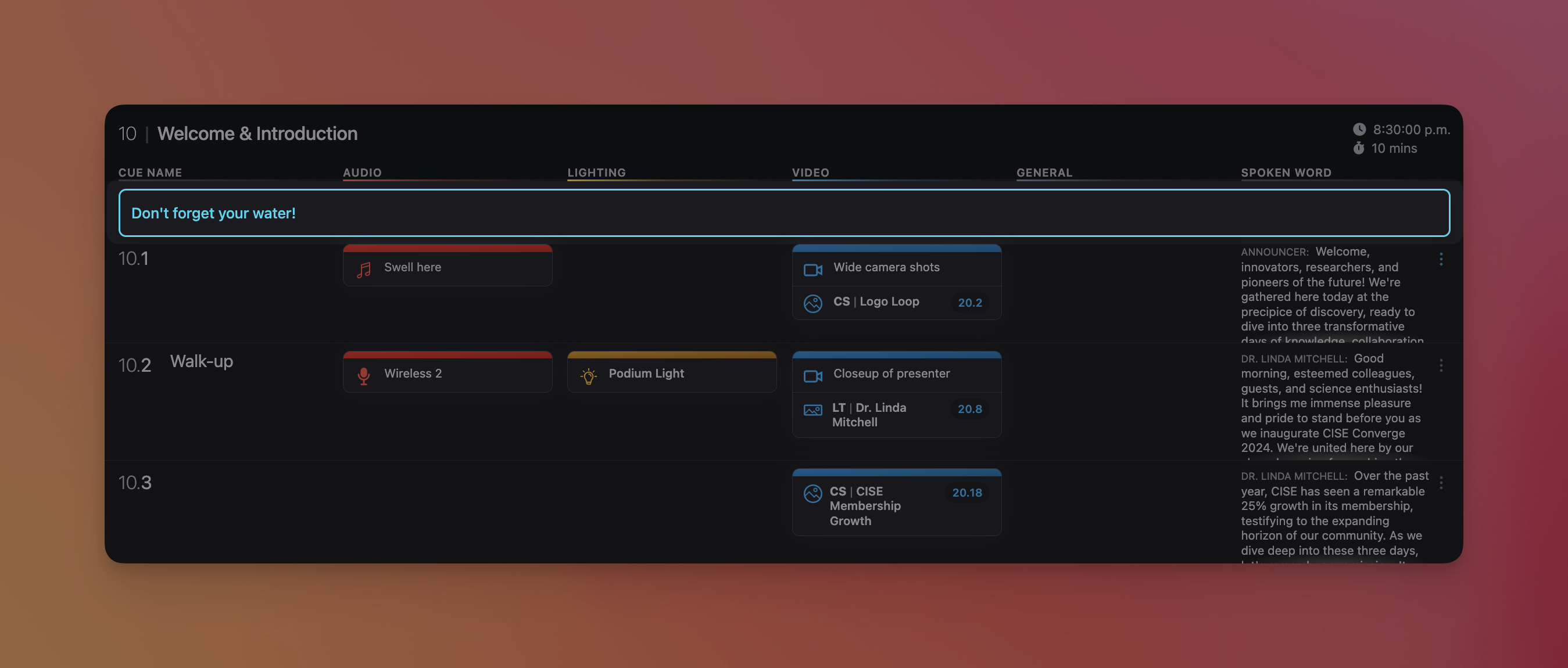
In any section of your script, you can leave private notes that are only visible to you. These are an alternative to writing in the margins of a printed run of show, and allow you to make note of something that is not relevant to any other production team member. Your private notes appear in both the full script layout and the run of show layout.
Posting Private Notes
To post a private note, navigate to the block you want to add your note. Then hover over the section number, and choose Add Private Note. Then, leave your note, choose your desired note color and click Save. Your private note will appear directly above the section you attached it to.
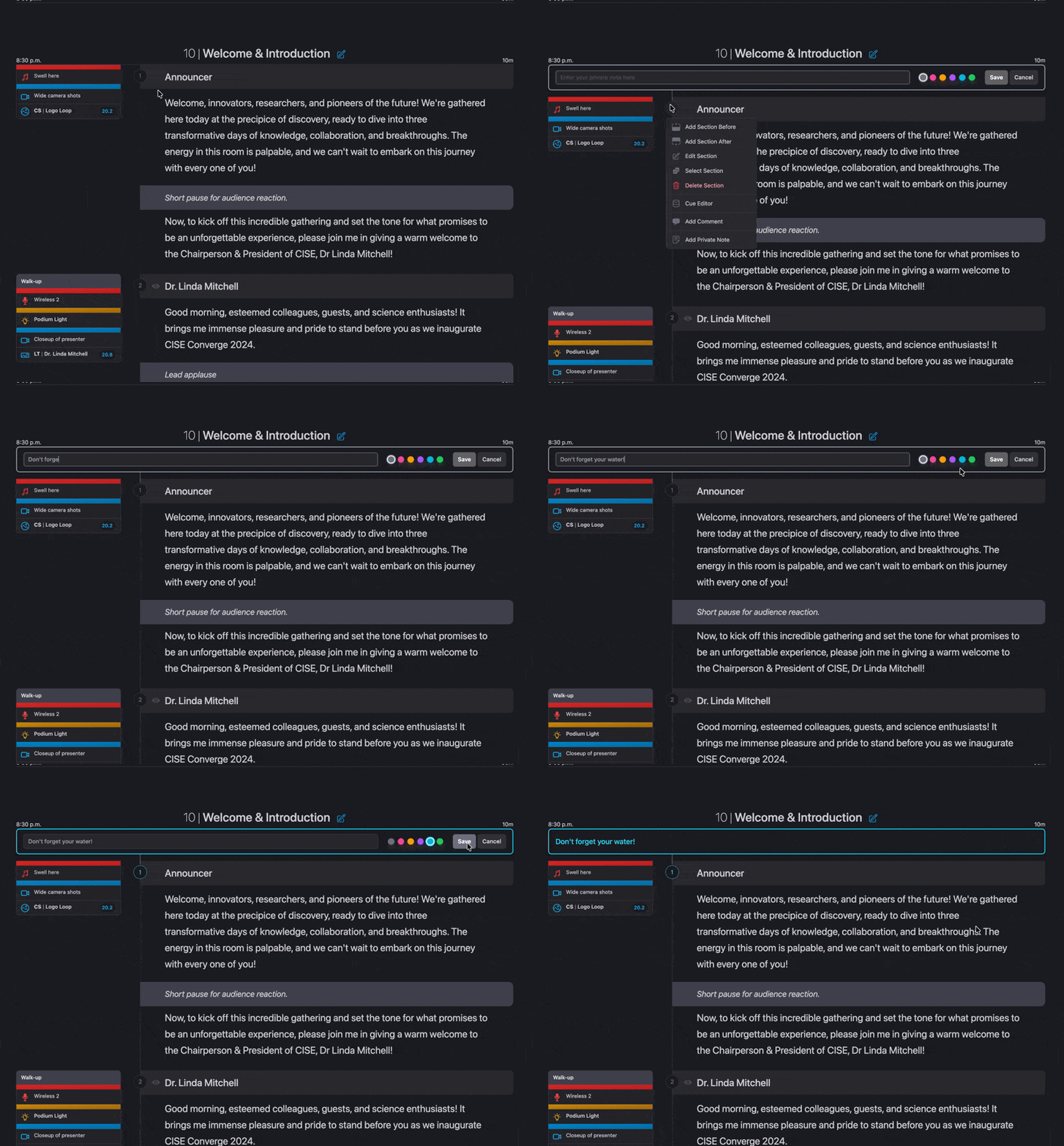
You're welcome to choose any color you like for your private notes, but we also encourage you to color code as desired. For example, you might choose yellow for to-do items and blue for reminders during the production.
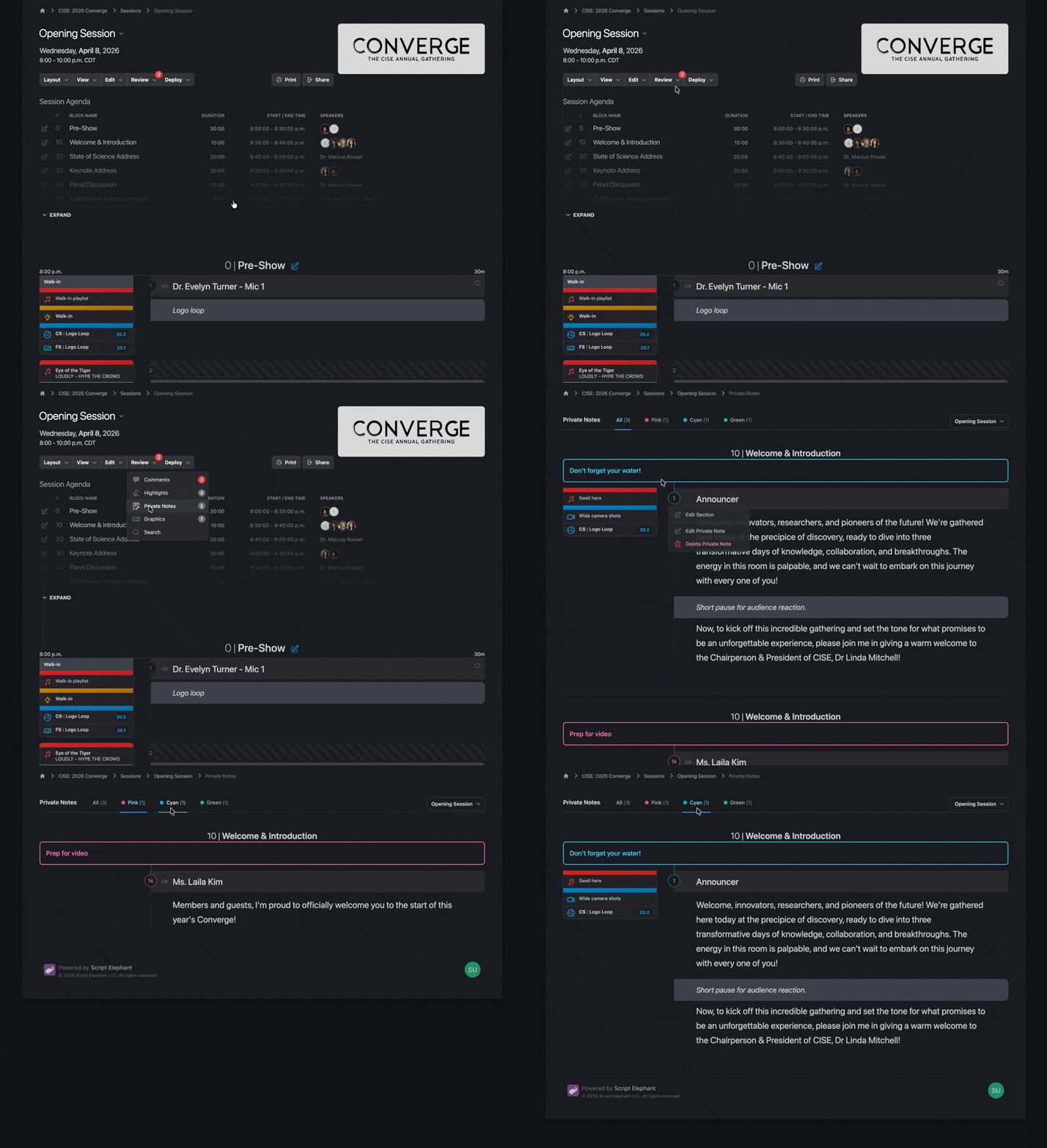
You can quickly see every private note by choosing Private Notes from the session dashboard menu at the top of your session’s main page under Review. You can view all private notes or select by color to narrow down by your chosen color code. You can also navigate to other sessions using the dropdown in the upper right corner.
Deleting Private Notes
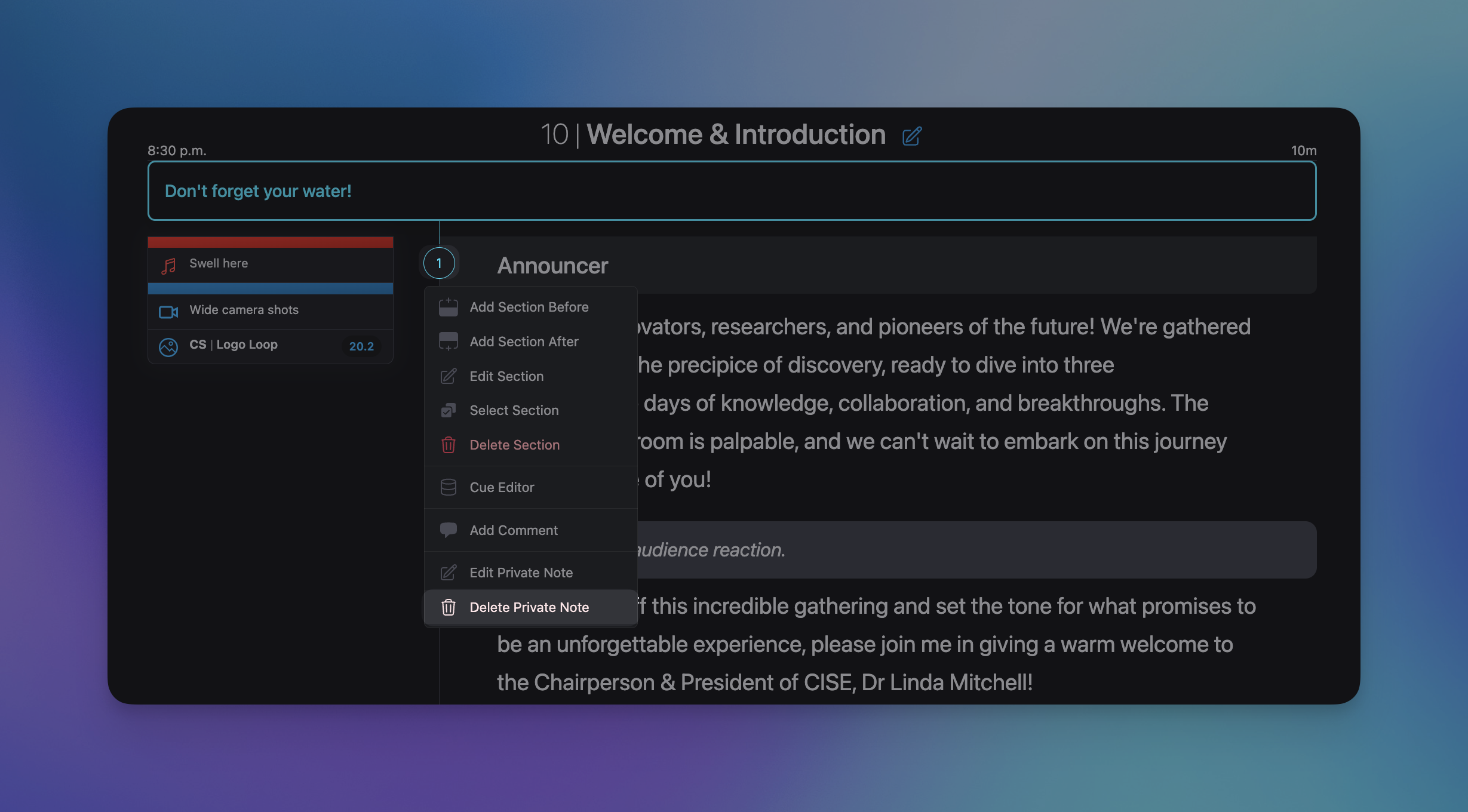
To delete your private note, hover over the section number and click Delete Private Note.
Hiding Private Notes
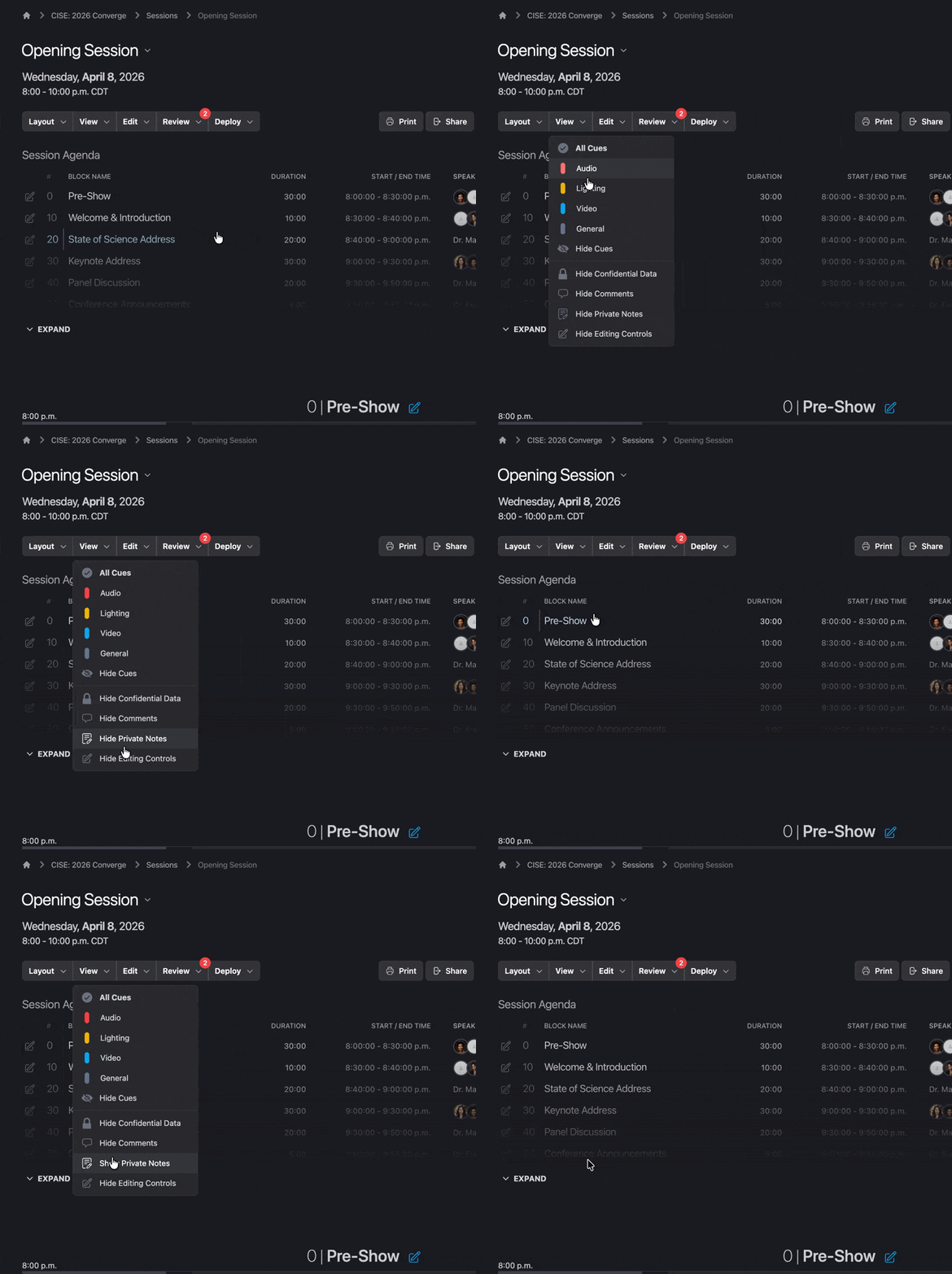
If you have added private notes to your script, you have the option to show or hide the private note in your printed script or run of show. To hide your private notes, hover over the View menu option in the session header and select Hide Private Notes. When you want to see them again, return to View and select Show Private Notes.